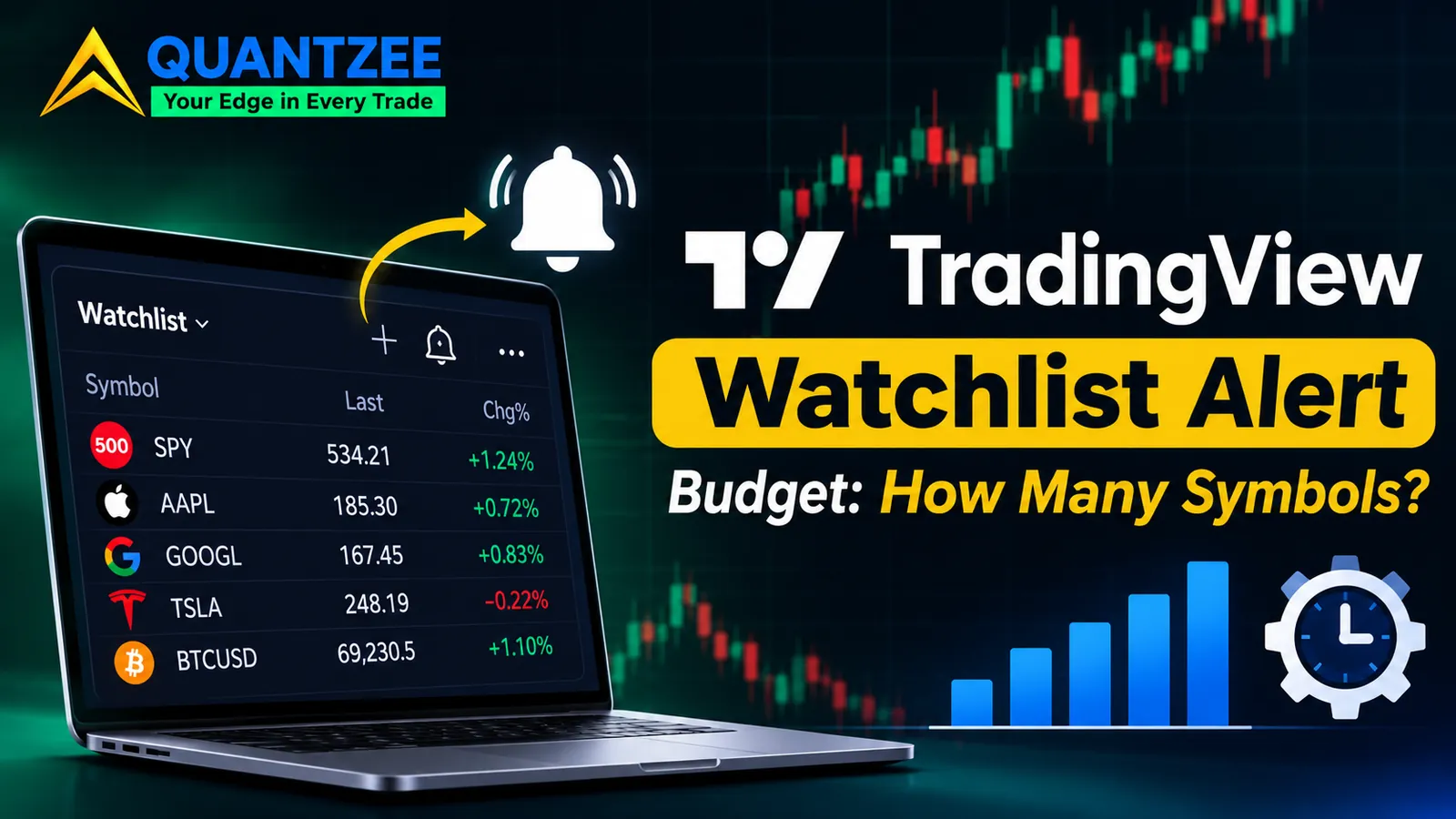
A TradingView watchlist is free to fill. You can type in 200 tickers and the platform won't complain. The trouble starts the day you attach an alert to that list, because from then on the useful size of the list isn't what you can type, it's what the alert can actually deliver. This post is about that second number, and about a rule for picking it.
If you only need the mechanics of creating a list, the Help Center article on mastering the TradingView watchlists covers them well, and Quantzee's own plan-limits walkthrough already holds the full tier table, so we won't reprint it here. What follows is narrower: what a watchlist alert really is, where the ceilings sit, and how many symbols belong on one list.
What a watchlist alert actually is
A normal alert watches one symbol. A watchlist alert watches a list. According to TradingView's watchlist alerts help page, it "functions independently for each symbol in the list" and triggers individually whenever a symbol meets the condition. One condition, evaluated across every row.
Two more behaviours from that page matter more than they look. The alert stays active until it has triggered for all symbols on the list. And it updates dynamically: add a ticker after you've made the alert and the ticker is covered, remove one and it stops being covered.
That second behaviour is the quiet one. Editing the list is now the same as editing the alert. Paste in 40 new symbols on a Sunday evening and you've changed what Monday's alert evaluates, with no dialog to confirm it.
One list alert versus one alert per ticker
Build the same screen two ways and the maintenance differs a lot. With per-ticker alerts, 30 symbols means 30 alerts to create, 30 to edit when you change the threshold, and 30 to delete when the idea is dead. With a list alert it's one object. When the condition changes you change it once.
The cost of that convenience is the thing nobody mentions in the tutorials: the platform rations list alerts differently from single-symbol alerts, in two places. By plan, and by how often the alert may fire.
The allowance by plan, read off the pricing page
We opened TradingView's pricing page on 6 November 2026 and compared the alert rows across the five tiers. The figures below are what the page listed that day. Limits change, so treat the date as part of the data.
- Active price alerts: 3 on Basic, 20 on Essential, 100 on Plus, 400 on Premium, 1,000 on Ultimate.
- Active technical alerts: 20 on Essential, 100 on Plus, 400 on Premium, 1,000 on Ultimate.
- Active watchlist alerts: 0 on Basic, Essential and Plus. 2 on Premium. 15 on Ultimate.
Read that last line again. Under Premium you can run two list alerts in total. That's not two symbols, it's two lists, each with one condition. If you wanted an RSI cross on your large-cap list, a volume spike on your crypto list and a gap condition on your ETF list, you're one short already, whatever size the lists are.
Per the page, watchlist alerts have their own line in the table, separate from price and technical alerts. The page doesn't say whether a watchlist alert also uses up slots in the other two counts, so check that in the alert manager before you plan a whole account around it. If you're still deciding which tier is worth carrying, our subscription cost breakdown works through that from the money side.
The trigger ceilings, and what a too-big list looks like
Here is the part we could not confirm first-hand. A third-party vendor guide from PineConnector, which cites TradingView's documentation, reports two ceilings on how fast a watchlist alert may fire: 15 triggers per symbol in any three-minute window, and 1,000 triggers per watchlist in any three-minute window, combined across all symbols. The same guide says that when one symbol hits its ceiling, only that symbol's alert is stopped, and when the whole list hits 1,000, the entire watchlist alert is stopped, which is a different kind of cap from the data-request limit on a chart dashboard script.
We tried to find those two numbers on TradingView's own pages on 6 November 2026 and didn't find them in the help articles we read. So take 15 and 1,000 as reported, not confirmed. The behaviour is the useful part, and it matches the "limited functionality" state the vendor describes: the alert stays on, but some symbols quietly stop being calculated.
What does a list that's too big look like from your chair? Nothing. That's the problem. There's no error banner on your chart. Alerts you expected simply never arrive, and the only trace is the status of the alert in the manager. If you rely on a phone push to tell you something happened, silence reads as "nothing happened". It's the same trap we described in the mobile alert workflow: the failure mode of an alert system is a missing message, so you have to go and look for the gap.
Why noisy conditions break first
The per-list number isn't what usually bites. A condition like "close crosses above the 50-day average" on a daily chart fires a handful of times a week. A condition like "price crosses VWAP" on a one-minute chart on a volatile open can fire again and again on one symbol as it whips around the line. That's the symbol that reaches 15 in three minutes, and it's often the one you most wanted to hear about.
A sizing rule that keeps a list inside its budget
You don't need a model. You need one multiplication and one honest guess.
- Pick the condition first. Not the symbols.
- Estimate the busiest three-minute window you've seen it fire on a single symbol. Open a chart on your busiest day and count. Call it F.
- Take the reported per-symbol ceiling, 15, and check F is comfortably below it. If a single symbol can reach 8 or 9 on a bad open, the condition is too fast for this alert type. Slow it down: move to a longer interval or tighten the trigger.
- For list size, divide the reported per-list ceiling, 1,000, by F. A condition that can fire 5 times per symbol in a hot window supports about 200 symbols before the list as a whole is at risk. One that can fire 20 times (which is already past the per-symbol ceiling) tells you the condition is the problem, not the list size.
- Then cut it. Use half of that number. A list sitting right at its limit is a list that fails on the one day you care about.
The numbers are reported ones, so the rule is only as good as they are. The structure holds even if the figures move: the list size is bounded by how noisy the condition is, not by how many tickers you have on your mind. A slow condition earns a big list, a fast one earns a short list.
There's a second constraint sitting above all this: your plan. With Premium's 2 watchlist alerts you're choosing two conditions. That's a different decision from sizing, and it comes first. We'd rather you spend those two slots on slow, high-selectivity conditions than burn one on a noisy one-minute cross.
Group by the condition, not by asset class
The Help Center describes sections as dividers you add from the watchlist name menu, and you can drag symbols between them. Most people group by asset class: tech, energy, crypto, FX. It looks tidy, and it makes the alert worse.
The alert doesn't care about sector. It cares about whether a symbol suits the condition. A volume-surge condition is meaningless on a thinly traded ADR and noisy on a leveraged ETF. If you group by "which condition will I attach to this", every list is coherent: one list for the slow trend conditions, one for the fast ones, one for earnings-week names.
Sections inside a list still help you read it. Our habit is to keep the alert list itself clean and let sections do the human sorting inside it. But the alert is the unit of work, so build lists around alerts, and sections around your eyes.
Flags and colours as a triage layer
Colour flags are a cheap second dimension, and they turn into decoration unless a colour means one thing. Pick a rule and write it somewhere you'll see it. Ours, for example:
- Red: alert fired and I haven't looked yet.
- Orange: looked, still waiting for a second condition.
- No flag: nothing pending.
Three states, each answering "what do I do next". If you can't say what a flag asks of you, delete it. A rainbow list with 12 colours is harder to scan than a plain one.
Getting symbols in at volume, and the exchange-prefix mistake
The Help Center lists an Import option in the watchlist menu: upload a.txt file with the exchange prefix and comma-separated values. That's the practical route for 100 or 300 symbols, and it's also the route for dumping a screener result into a list. A screener hands you rows, you paste the tickers, and the list is built in a minute.
The prefix is where it goes wrong. A symbol written without one resolves to whichever listing the platform picks, and a ticker that trades on two venues can open the wrong one. That puts the wrong venue's prices on your chart and, because the alert evaluates that symbol, the wrong venue's prices in your condition. Write NASDAQ:AAPL, not AAPL. For crypto, write the exact exchange pair you actually trade.
After any bulk import, spot-check five symbols. Open them, read the exchange tag next to the name, and confirm it's the one you meant. Five checks take a minute and save a week of confusing alerts.
Extended hours: a different list in practice
The watchlist alerts page has a note on the Session setting. Choose Extended to include pre-market and post-market hours for US stocks and ETFs, or 24 hours to also include the overnight session for stocks with overnight trading data. Futures symbols are always calculated within their electronic trading hours, whatever you pick.
So a list that mixes US equities and futures behaves unevenly under one setting. Some rows are evaluating at 4:30 a.m. Eastern and some are on their own clock. Extended sessions also tend to have thin volume and wide spreads, which is why the investor education pages from FINRA and Investor.gov both flag after-hours trading as a different risk environment. For alert purposes that means more false crossings on sparse prints, which feeds straight back into the trigger ceilings above. If you switch a list to Extended, size it as if it were a noisier condition, because it is.
Also remember the setting changes when you're woken up. An Extended alert can notify you at an hour you never planned to look at the screen.
Putting it together: a worked sizing example
Say you're on Premium. You have 2 watchlist alerts and 400 each of price and technical alerts. Here is how we'd spend them.
Alert one: a daily-close trend condition on a list of 120 liquid names. Daily bars mean each symbol can fire at most once a day, so F is 1 and the reported ceilings are nowhere near. Alert two: a 15-minute momentum condition on 40 names. On a busy open a single symbol might fire 3 times in a three-minute window at the extreme, so F is 3, and 1,000 divided by 3 gives roughly 330 as a theoretical size. We'd still keep it at 40, because the per-symbol ceiling and the extended-hours noise are the real risks, not the list total.
That's 160 symbols watched by two alerts, with the 400 single-symbol slots left over for the setups that need a specific level or drawing. Your own numbers will differ. The point is the order: plan tier, then condition, then noise, then list size.
Methodology: what the first-party pages did and didn't confirm
For transparency, here's how this post was put together. Our team read TradingView's watchlist and watchlist-alert help articles and its pricing page on 6 November 2026, and we compared them against the PineConnector guide listed in the sources. We found that the pricing page states the per-plan allowances plainly, and the help articles describe the behaviour of the alert plainly. The two trigger ceilings come from the vendor guide only. Where a number isn't first-party we've labelled it, and we haven't invented any tier name or cap beyond what those pages show.
This is analytical software commentary, not trading advice. Nothing here suggests a particular symbol or a return.
Frequently Asked Questions
Changelog
6 November 2026: first published. Plan allowances read off TradingView's pricing page on this date. Per-symbol (15) and per-list (1,000) trigger ceilings are reported by a third-party guide and were not found in the first-party pages we read.
Sources: TradingView, Mastering the TradingView watchlists · TradingView, Watchlist alerts · TradingView, Pricing · PineConnector, Watchlist alerts guide · FINRA · Investor.gov. Also see our alert setup docs and the webhook setup guide.