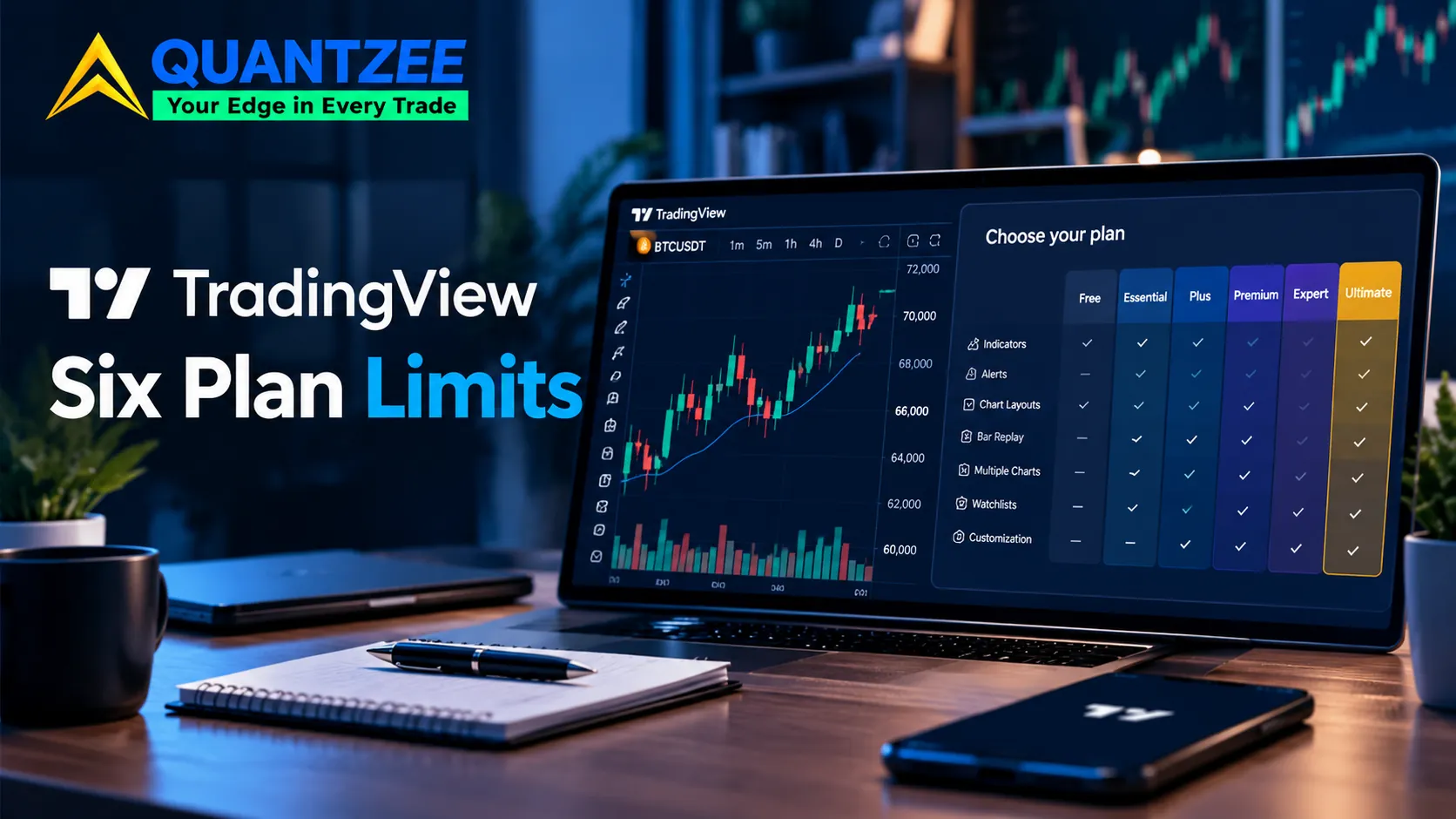
Type "how to use TradingView" into a search bar and you get a tour. Add an indicator here, drag an alert there, click the clock icon for bar replay. None of those tours print the number that actually gates each step. How many indicators does your plan allow on one chart? How many alerts can you run at once? How far back do your historical bars actually go? According to TradingView's own help centre, those numbers change by tier. Per the pricing page we checked on 29 October 2026, they change more than most tutorials admit. We found the same gap across every ranking page for this keyword while building our own test setup for the walkthrough below: plenty of feature tours, almost no page that prints the six numbers a new account actually runs into. This piece covers those limits first, then the workflow they allow, because a workflow written against the wrong tier just breaks on the first alert that won't save. For how these six numbers connect to alerts, webhooks and Pine Script, our complete TradingView guide maps the whole platform in one place.
The first ten minutes — a sequence, not a tour
Skip the feature walk. Here is what a new account actually needs to do, in order, the first time a chart opens. Six steps, done in this sequence, fit comfortably inside ten minutes — including the pause most people take to double-check the alert-frequency dropdown before confirming it.
- Pick the symbol with its exchange prefix — type
NASDAQ:AAPLorNYSE:F, not just the ticker, because TradingView resolves bare tickers to whatever exchange it considers primary, which is not always the one your broker uses. - Set the interval from the toolbar — daily for a first look, then drop to the timeframe you'll actually trade.
- Save the layout with Ctrl/Cmd+S or the dropdown next to the layout name, immediately, before you forget — a free account only gets one saved layout, so get in the habit of overwriting rather than hunting for a second slot.
- Add one indicator from the library (not ten — see the per-chart cap below) and let it fully load before judging it.
- Draw a horizontal level at a price that matters to you, then right-click it and lock it so it doesn't move when you scroll.
- Set one alert on that level, choosing "Once Per Bar Close" rather than "Once Per Bar" — the close-only setting is what stops an alert from firing on a tick that later reverses before the candle finishes.
Six steps, no feature tour. Everything past this point is either a limit you're about to hit or a verification step most tutorials skip.
The limits table — read on 29 October 2026, direct from TradingView
We pulled every figure below from TradingView's own pricing page on the date in this heading, cross-checked against the Pine Script execution limits documented in TradingView's help centre. Data from TradingView: plan limits are a business decision the company revises on its own schedule, not a fixed spec — if you're reading this more than a few months after the date above, re-check the pricing page before you plan around any single number.
| Limit | Basic | Essential | Plus | Premium | Ultimate |
|---|---|---|---|---|---|
| Charts per tab | 1 | 2 | 4 | 8 | 16 |
| Indicators per chart | 2 | 5 | 10 | 25 | 50 |
| Active alerts | 3 | 20 | 100 | 400 | 1,000 |
| Saved chart layouts | 1 | 5 | 10 | 10 | 10 |
| Historical bars available | 5K | 10K | 10K | 20K | 40K |
| Pine Script run-time per execution | 20s | 40s | 40s | 40s | 100s |
Source: TradingView's pricing page, read 29 October 2026. Market-data fee wording per TradingView's support article on exchange data fees.
Two of these are the ones that quietly break a beginner's plan. The alert cap is the one people hit first. Three alerts on a free account disappears fast once you're watching more than one symbol. The historical-bars figure caps how far back a Pine Script strategy backtest can reach on lower tiers. A script that references 15,000 bars of history for a long-term moving average will silently truncate on a plan capped at 10K. The strategy tester report from that truncated run will look fine while quietly excluding part of what you meant to test.
The saved-layouts row is the one almost nobody budgets for. A free account gets one layout, full stop, so if you're running one setup for swing charts and a separate one for intraday scalps, you'll be rebuilding from scratch every time you switch, or you'll overwrite the one you actually need. Essential moves this to five, which is enough for most single-strategy traders to keep a few symbol groups and timeframes side by side without constant rebuilding.
The run-time row matters only if you write your own Pine Script. A strategy or indicator that does heavy looping — scanning hundreds of historical bars inside a single calculation, for instance — can hit the per-execution ceiling and simply stop partway through, which shows up as a script that "works" on a short lookback and silently fails on a longer one. At 20 seconds on Basic, anything beyond a simple multi-timeframe scan is likely to need a higher tier or a rewritten, faster loop — the gap to 40 seconds on Essential and Plus is the first upgrade most script writers actually need, well before the chart or alert limits become the bottleneck.
What TradingView actually is, in one paragraph
TradingView is a charting and social-trading platform founded in 2011, built around shared charts, public scripts, and a browser-based engine that most traders now use alongside, or instead of, their broker's native charting tools. That "social" layer matters more than the tours let on: the public Pine Script library is written by anyone, of any skill level, and a script with a thousand likes is not automatically a script that behaves the way it looks like it does on the thumbnail chart. The verification habit covered later in this guide exists because of exactly that — a large, open library is a strength and a risk at the same time.
Which symbol you're actually looking at
The exchange prefix in step one above is not cosmetic. Per TradingView's support documentation: "by default, the U.S. stock market data is provided by Cboe Exchange. Thus it's slightly different from that of the primary exchanges. To get real-time data directly from NASDAQ, NYSE, or ARCA, you can add it to your plan." That means a US stock chart on an entry-level plan is, by default, a Cboe print — not a NASDAQ or NYSE feed — and the two can disagree by a tick or two around the open and close. We won't re-run the fee breakdown here. Our full data-source guide at are TradingView indicator subscriptions worth it covers what the direct-exchange add-ons cost and when they're worth paying for. What matters for this walkthrough is simpler. The same source document states plainly that "our paid plans don't cover those fees even if you have an active TradingView subscription." Exchange data fees sit outside the subscription price entirely. Almost none of the ranking tutorials for this keyword mention that.
Bar replay — the real beginner tool, used honestly
Press Shift+B or click the clock icon in the top toolbar to open bar replay. It rewinds the chart to a point you choose and lets you step forward one candle at a time, which is the closest thing to live trading you can do without risking anything. We've written the full walkthrough for this in how to backtest a TradingView indicator, including how to tally entries and exits into a spreadsheet for a win-rate estimate — reuse that method rather than re-deriving it here.
The honest caveat: bar replay is trivially easy to peek. If you already know the chart shape ahead of the candle you're stepping into — because you scrolled past it once already, or because the pattern is one you recognize from having traded that symbol before — your "test" is contaminated before you start. Two things make it mean something: pick a date range you have genuinely never looked at closely, and write your entry/exit rule down in words before you press play, not while you're watching bars print. If you catch yourself adjusting the rule mid-replay to match what just happened, the test is over and the result doesn't count.
Paper trading against the strategy report — two different questions
These get treated as interchangeable, and they answer different questions. Paper trading simulates execution. It places unfunded orders through the platform in real time and shows you fill behavior, timing, and whether you can actually act on your own signals at real market speed. The strategy tester report evaluates a coded rule set against history instead: net profit, profit factor, max drawdown, win rate, and the equity curve, all computed from a Pine Script strategy running against bars that have already happened.
A strategy can look strong in the tester report and fall apart in paper trading the moment real latency and real order queues get involved. A setup that trades well on paper can still have a coded rule set that happens to fail outside the specific window you tested. Run both. Neither substitutes for the other, and the order matters — get the coded logic validated in the tester first, with commission and slippage set to realistic, non-zero values, before you spend weeks confirming execution feel on a rule set that was never going to hold up.
This is also the point where it's worth being honest about what a paper account actually proves. A simulated fill at a simulated price is not the same as a real order competing for liquidity in a live book — paper trading can't fully price in slippage, partial fills, or the psychological difference of risking real capital versus watching numbers move on a demo balance. That gap doesn't make paper trading useless. It makes it one step in a sequence, not the final word on whether a system is ready for real capital.
Verify any script before you trust it
TradingView's public script library is open to anyone, and plenty of scripts there quietly repaint — meaning the signal you see on a closed bar is not the signal that was live when that bar was forming. Our dedicated guide at how to test a TradingView indicator for repainting covers the full three-part check (bar replay comparison, a refresh test on screenshots of the last signals, and an alert-trigger test), so we'll point there rather than repeat it. The one-line version worth remembering before you add any script from the library: load it, let a session close, then reload the chart and compare what printed. If a signal moved position after the reload, the live value and the closed-bar value disagreed. Don't trade off that signal until you know why.
Five problems that look like platform faults and aren't
Support forums fill up with these every week, and none of them are TradingView bugs. We've seen each one show up in a different disguise — a "broken" alert, a "wrong" price, a chart that looks frozen — and every time, the fix was a setting, not a support ticket.
- Wrong session setting. A chart left on regular session hours won't show pre-market or after-hours prints, which reads as a missing gap until you toggle extended hours on. Futures and forex traders hit this constantly, since both trade on near-continuous sessions that a stock-default chart setting simply won't display.
- Adjusted vs. unadjusted series. A stock chart adjusted for splits and dividends will show a different historical price than the unadjusted series the same ticker printed at the time. Neither is wrong; they're answering different questions. A backtest built on an adjusted series and compared against unadjusted broker fills will show a mismatch that has nothing to do with slippage.
- A delayed symbol. Some exchanges and instruments are delayed by default on lower tiers. A chart that looks "stuck" fifteen minutes behind the news ticker is usually just an unlicensed real-time feed, not a frozen chart. Check the symbol info panel — it states plainly whether a feed is real-time, delayed, or end-of-day.
- An alert set on a repainting condition. If the underlying script repaints, the alert built on it can fire on a condition that later vanishes once the bar closes. That looks like a false alert, but it's actually a correctly-firing alert on a badly-behaved signal — the fix is verifying the script first, not distrusting the alert engine.
- Chart timezone mismatch. A candle that appears to open or close at the wrong hour is almost always the chart's timezone setting, not a data error. Check it against your own local time before assuming anything else is broken, especially after daylight-saving changes, which shift exchange open times relative to a chart left on a fixed offset.
Where you actually need a paid tier
Skip the marketing tier names and look at the feature instead. You need more than the free tier the moment any of these apply to how you actually trade: you're running more than three live alerts at once, you need more than two indicators stacked on a single chart to read your own setup, you're backtesting a strategy over history longer than the free tier's bar cap, or you're watching more than one symbol side by side and the one-chart-per-tab limit means constant switching.
The jump from Basic to Essential is where most of these get solved at once — alerts go from 3 to 20, indicators from 2 to 5, saved layouts from 1 to 5. Plus and Premium exist mainly for traders running multiple strategies simultaneously, where the chart count and alert ceiling matter more than any single indicator slot. Ultimate's jump to 1,000 alerts and 100-second script run-time is a professional-desk tier; most discretionary and single-strategy systematic traders never need to push past Premium.
None of that is a verdict on whether TradingView is worth paying for — that's a separate question with its own tradeoffs, covered in our guide linked above. It's simply which limit in the table you'll hit first, so you can decide whether to work around it or upgrade past it.
One more practical note before you change tiers: a downgrade can leave you over a lower plan's limits on existing charts and alerts, since nothing stops you from building a setup under a higher tier and then dropping down. Check your actual usage — indicators per chart, active alerts, saved layouts — against the table above before you change tiers in either direction, rather than finding out which cap you've crossed in the middle of a trading session.
For traders coding and testing their own rule sets rather than reading someone else's chart, the deeper mechanics — how Pine Script actually executes bar by bar, and what "run-time per execution" really constrains — are covered in our Pine Script glossary entry. And if your workflow centers on building or refining a trading system rather than just annotating a chart, our algorithmic trading glossary page lays out where a charting platform's job ends and a dedicated backtesting engine's job begins — a distinction that matters more than any single plan limit once you're past the basics covered here.
Four Counts, One Tier: The Decision Rule
Skip re-reading the limits table above for a moment and just count four things about how you actually trade. One: how many charts do you need visible on screen at the same time, side by side, not one at a time in sequence. Two: how many indicators do you genuinely need stacked on your busiest single chart to read your own setup — not how many you'd like to try, how many you'd actually leave on. Three: how many standing alerts do you need running at once across every symbol you watch, not just today's watchlist but the one you'd build if you weren't rationing slots. Four: do you write or run Pine Script that loops over more history than a quick scan, or needs more than a few seconds of execution time per run.
Each of those four counts maps directly onto one row in the limits table above. Take the highest tier any single count forces you into, and that's your answer — not the tier with the most features, not the one everyone else recommends, the one that clears your actual highest number. A trader who only ever needs two charts, three indicators, and five alerts has no reason to pay for a tier built around fifty indicators and a thousand alerts; a trader running one Pine Script strategy with a heavy loop has a reason to pay for run-time alone, even if every other count on their account sits comfortably on a lower tier. Run the count before you upgrade anything — most accounts are paying for one limit they're not close to, and ignoring the one they've actually hit.
A short note on how this page gets kept current
Plan limits are a business decision, not a law of physics, and TradingView revises them on its own schedule. Our methodology for this page is simple: re-check the pricing page and the exchange-data support article before every substantial update, replace the table in full rather than patching one row, and keep the read date in the heading so a reader can judge the data's age at a glance. If you land here and the date looks old, treat the table as a starting point and confirm the live numbers before you plan a workflow around them.
Frequently Asked Questions
Quantzee builds and tests mechanical trading systems on top of platforms like TradingView — analytical software for traders who already understand their own risk, not investment advice. If your next step is formalizing a rule set rather than reading charts by eye, start with the glossary pages linked above.