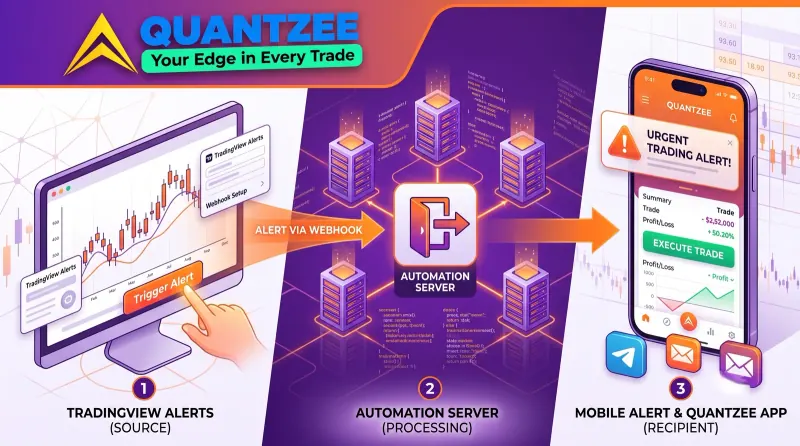
A TradingView alert that only pings your phone is half a system. The moment worth acting on — a non-repainting indicator confirming on bar close — still requires you to see the notification, open your broker, and place the trade by hand. Webhooks close that gap. They take the exact payload TradingView sends the instant an alert fires and deliver it directly to a broker, a bot, or an automation platform, so the action happens in the same second the signal confirms, not whenever you happen to check your phone.
This guide walks through exactly how TradingView webhooks work, how to wire one up to any broker or no-code automation tool without writing a script, the JSON payload structure that makes alerts machine-readable, and the safety checks that keep an automated alert pipeline from silently misfiring while you’re not watching it.
⚡ Key Takeaways
- A TradingView webhook is just an HTTP POST request TradingView sends to a URL you provide the instant an alert condition fires — no coding is required to set one up on the TradingView side
- The alert message field controls the entire payload; a JSON-formatted message is what lets a receiving broker, bot, or no-code platform parse the signal instead of just displaying plain text
- No-code automation platforms (webhook-to-broker bridges, Zapier/Make-style tools) let retail traders connect TradingView to a broker without writing or hosting any backend code
- Webhooks fire on the exact bar-close event your indicator confirms on — pairing them with a repainting indicator means the automation executes on a signal that may not have existed when the bar was live
- A production webhook pipeline needs three safety layers most first-time setups skip: a test-mode dry run, a position-size cap, and an alert-delivery monitor that flags silent failures
What a TradingView webhook actually is
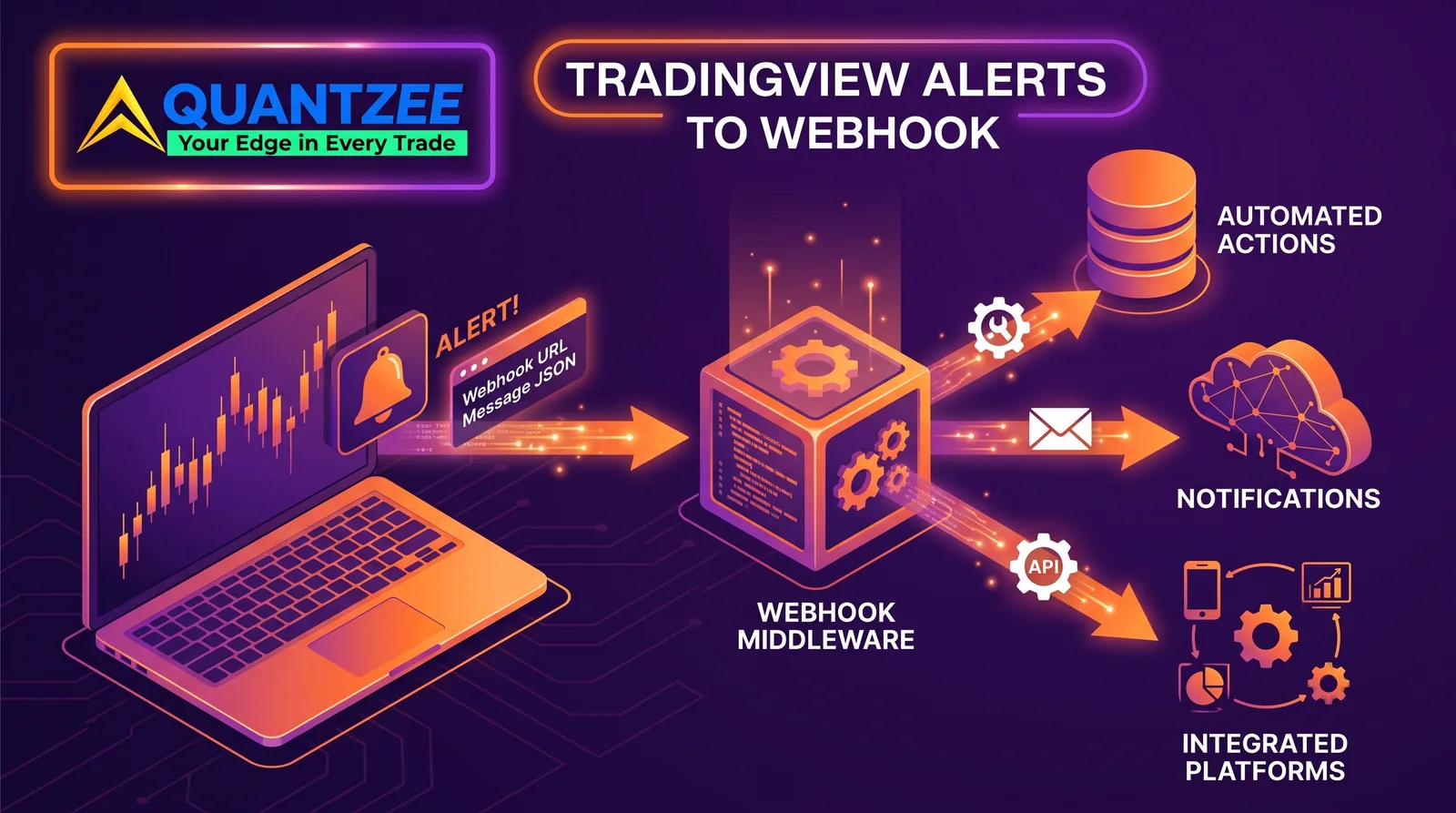
Strip away the automation-platform marketing language and a webhook is simple: it’s an HTTP POST request. When a TradingView alert condition is met, TradingView sends the contents of that alert’s message field to a URL you specified when you created the alert. Whatever service is listening at that URL receives the message and can act on it immediately — place an order, log the signal, send it to a Telegram bot, or trigger a broader automation chain.
This is fundamentally different from TradingView’s built-in notification types (app push, email, SMS, pop-up), all of which are designed for a human to read and then manually act on. A webhook is designed for a machine to read and act on, which is what makes true automation possible — no human latency between signal confirmation and execution.
TradingView supports webhook alerts on Pro, Pro+, Premium, and Expert plans (not the free tier), and the setup itself requires no code — you paste a URL into a field when creating the alert. The code, if any is needed, lives on the receiving end, not on TradingView’s side, and for most retail setups even that receiving end can be a no-code tool rather than custom-built infrastructure.
Why webhook automation matters for non-repainting indicators specifically
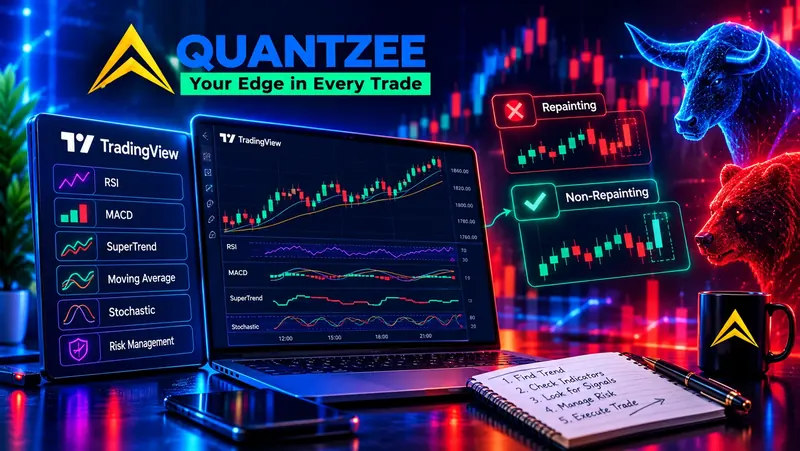
The entire value proposition of a non-repainting indicator — a signal that holds its position after the bar closes rather than recalculating in hindsight — depends on acting on that signal at the moment it confirms. A signal you plan to check “when I get a chance” defeats the purpose of paying for a non-repainting tool in the first place, because the whole edge of non-repainting confirmation is that the signal is real and stable the instant it prints, not just in a backtest.
Webhook automation is the mechanism that actually captures that edge in practice. Quantzee’s AI TrendPulse and SuperTrend Pro+ are both built to confirm on bar close specifically so they can feed a webhook pipeline reliably — an alert fired from a repainting tool would trigger the automation on a signal position that might not have existed if you’d checked the chart a bar later, which turns automation from an edge into a live liability. Before wiring any indicator to a webhook, confirm it holds its signal after bar close using TradingView’s Bar Replay tool, exactly as covered in our guide on why backtests don’t match live trading.
Step 1: Create the alert on TradingView
Start from the chart with your indicator or strategy applied.
- Click the Alert icon (clock icon) in the right-hand toolbar, or right-click the chart and select “Add Alert.”
- Under Condition, select the indicator and the specific plot or signal you want to trigger on (for example, a SuperTrend flip, an RSI cross, or a strategy’s buy/sell signal if you’re alerting off a Pine Script strategy).
- Set Alert actions to trigger on — critically, choose “Only Once” or “Once Per Bar Close”, never “Once Per Bar.” Triggering on every intrabar tick means the alert can fire on a value that hasn’t confirmed yet, which for a non-repainting indicator specifically undermines the entire reason you’re using one. Bar-close-only triggering is the automation-side equivalent of confirming your indicator doesn’t repaint.
- Under Notifications, check “Webhook URL” and paste the endpoint you’ll set up in Step 2.
- In the Message field, enter the payload — covered in detail below. This is the single most important field in the entire setup, because it’s the only thing the receiving service actually sees.
Step 2: Choose where the webhook sends data
You have three realistic paths, depending on technical comfort and what you’re automating toward.
Path A — A broker with native webhook/alert support
Some brokers and trading platforms accept TradingView webhooks directly and translate the payload into an order without any middle layer. This is the simplest path when available: TradingView → broker webhook endpoint → order placed. Check your specific broker’s API documentation for a “TradingView webhook” or “alert-to-order” feature before building anything more complex — several retail-facing brokers across crypto, forex, and equities now support this natively, and it eliminates an entire integration layer.
Path B — A no-code webhook-to-broker bridge
For brokers without native webhook support, a growing category of no-code bridge tools exists specifically to translate a TradingView JSON alert into a broker API call. These tools work the same general way: you connect your broker account once through the bridge’s dashboard (API key entry, OAuth, or similar — no code), then point your TradingView webhook URL at the bridge’s endpoint instead of the broker directly. The bridge parses the JSON payload and places the corresponding order.
This is the realistic default for most retail traders wanting webhook automation without hiring a developer — the entire setup is dashboard clicks and copy-pasting a URL and a JSON template, on both the TradingView side and the bridge side.
Path C — General-purpose automation platforms (Zapier, Make, and similar)
If you’re not automating a direct trade execution but instead want the alert to trigger something else — log to a spreadsheet, post to a Slack or Telegram channel, send an SMS through a service TradingView doesn’t natively support, or kick off a multi-step workflow — general no-code automation platforms accept an incoming webhook as a trigger and can format the payload into hundreds of downstream actions. This path is also useful as a first test step even if your end goal is broker execution: point your alert at a webhook-testing tool first, confirm the payload arrives correctly, then swap the URL for your actual broker or bridge endpoint once you trust the pipeline.
Step 3: Build the JSON payload TradingView sends
The message field in your TradingView alert is what the receiving service actually parses, so its format matters more than any other single setting. A plain-text message like “Buy signal on the index” is fine for a human reading a push notification — it’s useless for a machine trying to place an order, because there’s no structured field for symbol, side, quantity, or order type.
A JSON payload solves this. TradingView supports variables inside the alert message that get substituted with live values when the alert fires, letting you build a dynamic, structured payload instead of hardcoding values per alert. A typical webhook message for a long entry looks like this:
{
  "symbol": "{{ticker}}",
  "action": "buy",
  "price": {{close}},
  "time": "{{time}}",
  "strategy": "AI TrendPulse",
  "timeframe": "{{interval}}"
}
The double-curly-brace variables ({{ticker}}, {{close}}, {{time}}, {{interval}}) are TradingView placeholders that auto-populate with the actual values at the moment the alert fires — you don’t manually edit them per alert, they resolve dynamically. This is what makes one alert template reusable across every symbol and timeframe you apply it to, rather than needing a unique hand-written message for every instrument.
For a strategy-based alert (as opposed to an indicator-based one), TradingView also exposes strategy-specific placeholders like {{strategy.order.action}} and {{strategy.order.contracts}}, which report the actual buy/sell action and position size your Pine Script strategy just executed — useful when you want the webhook to mirror exactly what your backtested strategy logic decided, rather than re-deriving the decision from raw indicator values downstream.
Whatever bridge or broker receives this payload will document its own expected field names (some want "side" instead of "action", some want "qty" instead of implying position size elsewhere) — match your JSON keys to what the receiving service’s documentation specifies, since the receiving end is what actually enforces the schema, not TradingView.
Step 4: Test before connecting real order execution
Before pointing a webhook at anything that touches real capital, confirm the payload arrives correctly and parses as expected. A dedicated webhook-testing utility (there are several free tools built exactly for this) gives you a temporary URL that logs every incoming request — point your TradingView alert at it, wait for the alert to fire (or manually trigger a test alert from the TradingView alert dialog, which most alert types support), and inspect the raw payload that arrives.
This step catches the two most common webhook setup mistakes before they cost money:
- Malformed JSON. A missing comma, an unescaped quote, or a variable placeholder typo produces a payload the receiving service can’t parse — and TradingView will not warn you about this at alert-creation time, since it only validates that the message field has content, not that it’s syntactically valid JSON matching your target schema.
- Wrong or unresolved variables. A placeholder that doesn’t exist for the alert type you configured (using a strategy placeholder on a plain indicator alert, for example) resolves to an empty string or literal text instead of a value, silently corrupting every downstream field that depends on it.
Only after confirming clean, correctly-parsed test payloads should you switch the webhook URL from the testing tool to your live bridge or broker endpoint.
Step 5: Add safety layers before going fully live
An automated pipeline that places real orders with no human in the loop needs guardrails a manual-alert setup never required, because there’s no longer a person double-checking the signal before it becomes a trade.
Position-size caps at the receiving end, not just in your indicator’s logic. Most bridges and broker APIs let you set a maximum order size independent of whatever quantity the webhook payload requests. Set this even if your JSON payload already specifies a fixed size — it’s a second, independent check that catches a malformed payload requesting an unintended quantity before it reaches your broker.
A dry-run or paper-trading mode for the first live cycle. Many bridges support a test mode that logs the intended order without actually submitting it, or routes to a paper-trading account instead of a live one. Run your full alert-to-execution pipeline in this mode through at least a handful of real signals before flipping it to live capital — this surfaces timing issues, payload mismatches, or broker-side rejections in an environment where a mistake costs nothing.
An alert-delivery monitor. TradingView alerts can silently fail to fire under specific conditions — a browser-based alert requires an open TradingView browser tab (server-side alerts on paid plans don’t have this limitation, which is one more reason webhook alerts need at least a Pro plan), and a webhook delivery itself can fail if your receiving endpoint is temporarily down. Most bridge platforms log delivery success/failure and can notify you (separately, via email or Telegram) if an expected webhook wasn’t received — set this up before relying on the pipeline for real trades, because the most dangerous failure mode in automation isn’t a wrong trade, it’s a missed one you don’t find out about until you check your account balance.
Common mistakes when setting up TradingView webhooks
Triggering on “Once Per Bar” instead of “Once Per Bar Close.” This is the single most common configuration error and it directly undermines non-repainting confirmation — the alert fires on every intrabar update rather than waiting for the bar (and the indicator’s signal) to actually confirm.
Hardcoding values instead of using TradingView’s dynamic variables. A payload with a literal symbol and price baked in only works for the one instrument and moment you wrote it for. Using {{ticker}}, {{close}}, and related placeholders makes one alert template reusable across your entire watchlist.
Skipping the test-payload step. Going straight from “alert created” to “connected to live broker” means the first time you discover a malformed JSON payload is when a real order fails to place — or worse, places incorrectly.
No position-size cap independent of the payload. If the only thing limiting order size is what the JSON payload says, a single bad alert (or a bug in a bridge’s parsing) has no second line of defense before it reaches your broker.
Assuming webhook delivery is guaranteed. Webhooks are delivered on a best-effort basis over the internet — network issues, an expired API key on the receiving end, or a temporarily down endpoint can all cause a webhook to never arrive, with TradingView giving no retry guarantee for most alert types. A monitored pipeline catches this; an unmonitored one just quietly stops trading and you may not notice for hours.
Webhook automation and your existing indicator stack
Webhook alerts work identically whether you’re automating a single indicator’s signal or a full confluence stack — the alert condition on TradingView’s side can be set on a combined Pine Script condition (all layers of your stack agreeing) just as easily as on a single indicator’s plot. If you’re running a multi-layer confluence system, build the combined condition into a single Pine Script alert condition first (rather than firing three separate webhooks per layer that your receiving end then has to reconcile), so the webhook only fires once the full setup — trend filter, momentum trigger, and volume/location confirmation — has actually qualified. This keeps the automation logic matching exactly what you backtested, rather than introducing a new point of divergence between your tested strategy and what actually executes.
Frequently Asked Questions
Educational and informational only. Quantzee provides analytical software, not investment advice. Any automated execution pipeline you build carries full responsibility and risk on your end — test thoroughly in a non-live environment before connecting real capital, and always validate broker/bridge behavior on your own account before relying on it.