
The TradingView AI Chart Copilot is good at one job: chart admin. It can switch symbols, change timeframes, add a built-in indicator and set an alert faster than you can click through the menus. It is not good at the job most traders hope it does, which is reading the chart for them. And it has no view into the logic of a protected or invite-only script sitting on your screen. That is the short answer. The rest of this post draws the line between those two jobs, and covers the one topic none of the ranking reviews raise: what you hand over when you install it.
Every figure below carries the date it was read, because this is a beta product and the numbers have already moved once.
What the TradingView AI Chart Copilot actually is
It is a browser extension, not a feature of the TradingView platform. The full store name is "TradingView Remix: AI Chart Copilot". Per the Chrome Web Store listing (read 17 November 2026), the developer website is tvremix.xyz, the current version is 0.19.0, it was last updated on 27 October 2026, and it shows 100,000 users with a 4.3 rating from 147 reviews. The listing does not give a company name. It says only that the extension was created by the owner of the listed website.
That matters, because the search results blur it. TradingView announced the public beta on its own blog on 2 April 2026, and the listing now calls the product "official". An independent review on the TradersPost blog, updated 11 October 2026, states that it was built by a third-party team at tvremix.xyz and promoted by TradingView. One of the other two ranking reviews never names the publisher at all.
Keep it separate from the AI features that really are first-party. TradingView's own Copilot lives inside Supercharts and the desktop app, and according to TradingView's support pages it sits on paid plans. An update note on the April beta post says the extension "will eventually be discontinued" in favour of that built-in version. So you are looking at a bridge product, and you should plan around that.
The automation set: where the tradingview remix ai chart copilot earns its place
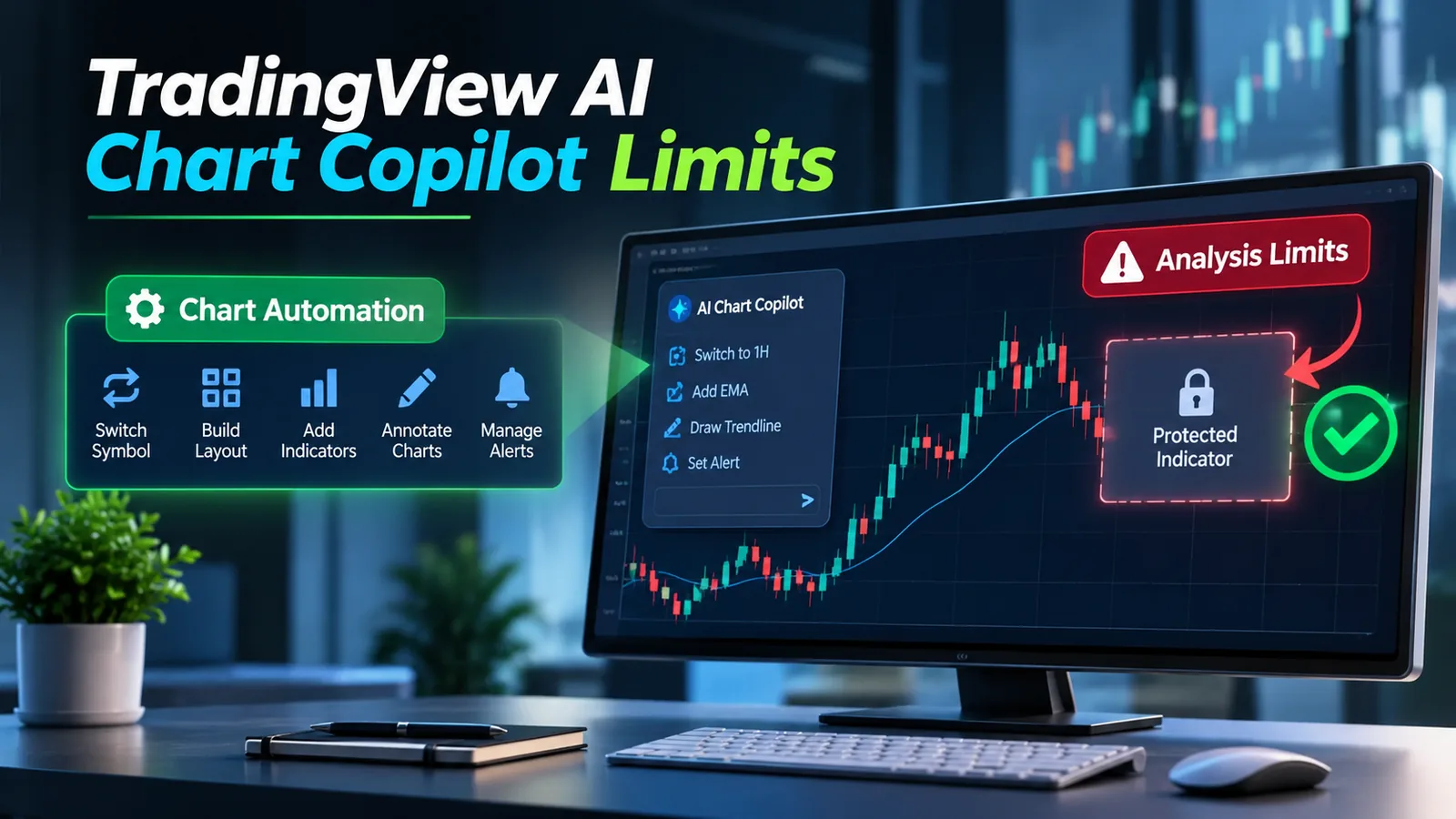
This is the useful part. You type a request in a side panel, and the extension drives the chart for you. Based on the store listing and TradingView's beta post, the automation set covers:
- Switching symbol and timeframe ("show me AAPL on the 15-minute").
- Building multi-chart layouts.
- Adding and removing built-in indicators, and changing chart type.
- Drawing support and resistance lines, trend lines and other annotations.
- Creating price alerts in bulk, then listing, pausing, restarting or deleting them by conversation.
- Screening by 52-week highs, sector or volume, and scanning a watchlist.
Alerts are the standout, because setting 10 alerts across 10 symbols by hand is maybe 40 clicks and three minutes of dialog boxes. One typed sentence does it. If you already run an alert-driven routine, like the one in our mobile alert workflow for TradingView, that time saving is real and it adds up across a week.
Drawings are weaker, and the TradersPost review found that anchor points can land inconsistently, so check any line it draws before you set an alert against it.
The interpretation set: output you have to check
Ask the extension "what is this chart telling me?" and you get a tidy paragraph. Read it closely, because it is a summary of readings the assistant pulled, such as a moving-average position, an RSI value, a MACD cross and a technical rating. That is a list of values put into sentences, not analysis.
Here is the gap we found when we compared the three ranking reviews. None of them puts the assistant's chart read side by side with a manual read of the same chart. Not one of them does; they describe the feature and move on. Our team has not published that test either, and we won't describe its accuracy until someone has. You can run it yourself in about five minutes:
- Pick one symbol and one timeframe, say the daily chart of a large index ETF. Write down the date and time.
- Before asking the copilot anything, write your own three-line read: trend direction, the nearest support and resistance, and whether momentum is rising or fading.
- Ask the copilot for its read of the same chart. Save the reply.
- Compare line by line. Did it name the same levels? Did it call the same trend? Where it differs, which one does the price history back up?
- Repeat on a second, choppier symbol. Sideways markets are where summaries tend to break down.
Two runs won't tell you much about accuracy. They will tell you whether the reply is a read or a recital. The same caution applies to the Pine Script it writes. The listing says Pine authoring is for Essential plans and above, and the TradersPost review cites independent testing by Pineify that found generated code often had errors or failed to compile. Treat any generated script as a first draft, and run it through a repaint check like our five-minute TradingView repainting test before you trust a single arrow.
The hard boundary: what it cannot touch
Three things sit outside the line entirely, and they matter more than the feature list.
It does not place live orders. The listing mentions paper trading with a confirmation step before each trade. The reviews agree it cannot connect to a broker account. Any route from a copilot alert to a real order runs through a separate webhook tool that you set up yourself.
It does not backtest. Historical strategy testing still means the Strategy Tester or an outside tool.
It cannot reason about a protected script's logic. This is the point nobody covers. The extension works with indicators by name, from the catalogue of built-in studies it knows. A custom script on your chart is a different thing. If the script is protected or invite-only, TradingView hides its source code from everyone except the author, and that includes any extension running in your browser. At best the assistant can see a name and maybe some plotted values. It can't know how those values were computed, what the script repaints, or what its settings mean. So if your edge lives in a third-party or private indicator, the copilot's "read" of your chart is a read of the built-in layer only. This is our inference from how TradingView protects script source, not a published test. It is easy to check, though: load one custom script, ask the copilot to explain its signal, and see whether the answer goes beyond the script's title.
Permissions and privacy: the missing section
An extension that reads your chart state and acts on your account is getting real access. You should know how much before you click Add. None of the three ranking reviews spends a sentence on this.
Here is what the store listing discloses, as read on 17 November 2026. Under privacy practices, the developer says the extension handles personally identifiable information. It declares that data is not sold to third parties, not used for unrelated purposes, and not used for credit or lending decisions. It says TradingView session data stays in the browser and that questions are processed server-side without storing trading data or chart history. That last claim is a self-declaration. There is no independent audit attached to it.
Your questions do leave the browser, though. To answer them, a remote AI service has to see enough of your chart context to respond: the symbol, the timeframe, the indicator values and your prompt. Read the permissions in two places:
- The install dialog. Chrome shows a permission warning before the extension is added. Read it rather than clicking through.
- After install, open
chrome://extensions, click Details on the extension and check "Site access". Setting it to "On specific sites" with only tradingview.com is a sensible floor.
General guidance from the US Cybersecurity and Infrastructure Security Agency on keeping your accounts and software secure applies here too: install from the official store, keep software updated, and remove what you no longer use. For background on how much a browser extension can see inside a page, the overview on Wikipedia is a fair primer. If you trade from a browser profile that also holds banking or broker logins, a separate Chrome profile just for charting costs nothing and limits the blast radius.
Beta reality: caps, browsers and moving numbers
The limits have already changed in seven months, which is the clearest reason for dating every figure.
- Request caps. In April 2026 the reviews reported 15 free requests per day, resetting at midnight UTC. The store listing read on 17 November 2026 now describes weekly limits that vary by TradingView plan.
- Browsers. Chromium only: Chrome, Edge, Brave, Opera and Vivaldi. No Firefox, no Safari, and no TradingView desktop or mobile app, since it is a browser extension.
- Adoption. The TradersPost review quoted about 10,000 installs and a 4.4 rating from about 20 reviews. The listing now shows 100,000 users and 4.3 from 147. That is a tenfold jump in user count, and it tells you the tool is spreading faster than anyone has stress-tested it.
- Price. Free during the public beta. That label can change under you, and so can the feature set.
What it changes about your workflow, and what it doesn't
Typing a request is faster than clicking through dialogs. That is the whole gain: it saves time on chart setup and alert housekeeping, but it doesn't change what the chart says.
When we look at how traders lose time, most of it isn't in setup. It goes into reading a signal, second-guessing it, and checking whether it held up last time. A copilot that sets 10 alerts in one sentence gives you back maybe five minutes a session. A tool that tells you which alerts deserve your attention is a different product. The broader shift is covered in our piece on how AI is changing chart reading in 2026. The copilot fits there as an interface layer, not a signal layer.
Copilot vs an analytical indicator suite
People sometimes ask whether this replaces a paid indicator suite. It doesn't, and the question mixes up two jobs. The copilot drives the interface. An analytical indicator computes a signal on the price bars, bar by bar, with logic you can test across years of history. One moves your mouse for you. The other decides what is worth looking at.
In our experience the two work well side by side. The copilot loads the layout and sets the alerts, and the indicator supplies the conditions those alerts fire on. Quantzee builds the second kind, and our own scripts are exactly the kind of custom indicator the copilot cannot see inside. If you are weighing signal tools, our guide on what to look for in a TradingView signal tool lays out the criteria, and how AI trading indicators actually work explains what "AI" means inside an indicator, which is a very different use of the word from a chat assistant.
How we put this together (methodology)
We read the Chrome Web Store listing directly on 17 November 2026 and recorded the version, update date, user count, rating and privacy disclosures. We read TradingView's 2 April 2026 beta announcement and its update note. We compared the three pages that rank for this query, line by line, against the listing. We did not run a timed accuracy study of the chart read, and we say so above rather than guess at a result. Where a capability is described here, it comes from the listing or the vendor's own post, and drawing quality comes from the TradersPost review.
Verdict: who it suits
It suits the trader who spends more time setting up charts than reading them. If you watch 20 symbols, rebuild layouts every morning and manage dozens of alerts, the copilot will save you real minutes. If your edge depends on reading the chart well, or on a custom indicator, it won't help with that part, and its chart summaries need a manual check every time. Install it, lock its site access to TradingView, date the limits you see, and treat it as a fast pair of hands rather than a second opinion.