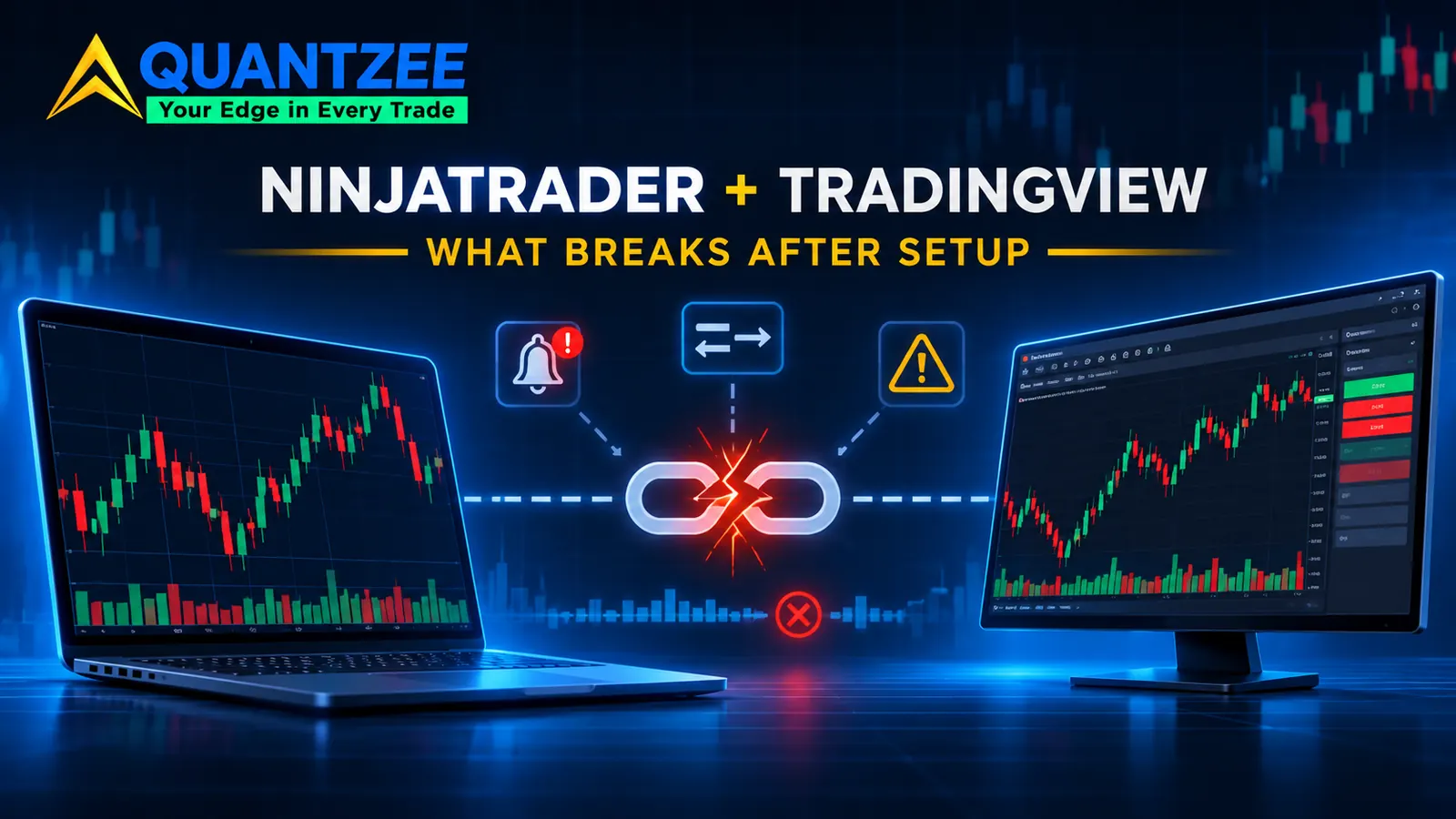
If you searched how to connect NinjaTrader to TradingView, the short answer is this. Open a TradingView chart, click the Trading Panel or the Trade button, pick NinjaTrader from the broker list, and log in with your NinjaTrader account details. That takes about two minutes. The harder part starts a week later, when an order goes to the wrong contract or fires twice. This guide spends a few lines on the setup and the rest on what goes wrong after it.
Which connection do you actually need?
Most of the frustration with this search comes from people wanting three different things and calling them all "connecting." Pick yours first.
- You want to click buy or sell on a TradingView chart and have the order land in your NinjaTrader account. That is the native broker link. It is the one the setup steps above describe, and the vendor's own TradingView page walks through it.
- You want your TradingView charts inside the NinjaTrader desktop platform, or your desktop platform to receive TradingView trades. The native link does not do this. More on that in the next section.
- You want a TradingView alert to place an order with no click from you. The native link does not do this either. You need a relay, which is a separate piece of software that sits between the two platforms.
Everything in the rest of this post applies to the first and third groups. If you're in the second group, read the next section and save yourself an afternoon.
The desktop gap: the native link serves the web product
The NinjaTrader connection on TradingView routes orders to the broker's web platform, not to the NinjaTrader 8 desktop application. The vendor page describes access through the TradingView website and its Trading Panel and does not mention the desktop build at all. A 6,500-word comparison from QuantVPS, updated on 12 October 2026, says the same thing in plain words.
So if your strategies, ATM templates and workspaces all live in the desktop application, connecting on TradingView will not show them. Your orders will appear in your account, but the desktop app's automated exits will not be managing them unless you set that up separately. Getting TradingView signals into the desktop build is a different job that uses different software, usually a third-party bridge that listens for webhooks and talks to the desktop platform through its add-on interface, so finish the six beginner TradingView skills in order on the web chart first.
What it costs, split by account type
Methodology: every fee and capability statement in this section was read from the vendor pages on 15 November 2026. Prices change, so treat these as a snapshot and check them on the day you sign up.
Retail brokerage account. According to the vendor's TradingView page, read on 15 November 2026, "TradingView access is $9.99 a month" (USD on the US site). The QuantVPS guide, checked on 10 October 2026, describes the connection as included in NinjaTrader's pricing plans instead. Two sources a month apart disagree, which is exactly why you should look at your own account's billing page before assuming either one. The same guide lists NinjaTrader's live plans at $0, $99 a month, or $1,499 lifetime, and TradingView's paid plans from $14.95 a month. You need a paid TradingView plan for webhooks.
Prop account. Per the NinjaTrader prop walkthrough, access is managed by your prop firm rather than bought as a separate subscription. There are two catches nobody mentions until you hit them. First, prop accounts connect through the Demo option on TradingView, whether you are in an evaluation or funded. Picking "Live" fails even with correct credentials. Second, your firm has to be in the NinjaTrader Prop network and has to switch TradingView access on for your account.
Market data. This is the line item that catches people. Live futures prices are a separate exchange data entitlement, and neither the vendor page nor the QuantVPS guide prices it. If your chart shows delayed quotes after you connect, the connection is fine. Your data entitlement is not. Check it on whichever side is supplying your chart feed before you blame the broker link.
Symbol mapping: the first thing that breaks
A chart symbol and a tradeable contract are not the same string. On TradingView you might chart a continuous futures symbol such as NQ1!, which stitches each contract month into one long history. Your broker cannot trade "NQ1!". It trades one specific contract, such as the December 2026 or March 2027 Nasdaq-100 E-mini.
When you place orders manually through the native panel, the panel resolves this for you at the moment you click. Relays are where it goes wrong. A relay built in one contract month often has the contract code written straight into the alert message or the relay's settings. Then the quarterly roll comes. Equity index futures roll four times a year, in March, June, September and December. The chart's continuous symbol carries on smoothly onto the new front month, but the relay keeps sending orders for the old contract. Depending on the broker, those orders get rejected, fill in a thin expiring contract, or sit unfilled.
Nothing on the chart warns you, because from the chart's point of view nothing changed. Here are three checks worth running:
- Write down the exact contract string your relay sends, and put the next roll date in your calendar 5 days ahead of time.
- Prefer a relay setting that maps a root symbol (NQ, ES, CL) to the current front month over a hard-coded contract code. If your relay can't do this, the calendar reminder is your only guard.
- After each roll, send one small test order in a simulation account and confirm which contract it hit.
Micro contracts add one more trap. The chart and the order can both be "Nasdaq futures" while one is the E-mini and one is the Micro, which is a 10x difference in exposure per contract. Check the multiplier, not just the root.
Duplicate and missed fires
A TradingView alert is a notification. Turning it into an order needs a relay outside both platforms, usually a webhook endpoint that receives the alert's message and then sends an order to the broker. That relay is a third component, with its own uptime and no exchange-level guarantee. Two failures show up again and again.
Duplicates. An alert set to "once per bar" on a condition that is evaluated while the bar is still forming can fire, un-fire and fire again inside the same bar as price moves around the trigger level. Each fire is a separate webhook. If the relay treats every webhook as a fresh instruction, you get two entries. Network retries cause the same thing: if the relay is slow to respond, the sender may try again, and a relay that does not check will act twice.
Missed fires. The relay's server restarts, its certificate lapses, your subscription to it ends, or an alert quietly expires. TradingView alerts can have an expiry date, and an expired alert sends nothing and raises no error. The QuantVPS guide also notes that TradingView does not publish a webhook delivery time, so you can't assume a fixed delay either.
When we write alert conditions into our own Pine scripts, we use "once per bar close" for anything meant to drive an order, so the alert only fires on a confirmed bar. That costs a few seconds of latency on most timeframes, and it removes the whole class of mid-bar flicker. Two guards are worth building before any money is live:
- An order identifier. Put a unique ID in every alert message, such as the symbol plus the bar's timestamp plus the direction. The relay keeps a short list of IDs it has already acted on and drops any repeat. This one field stops both the flicker duplicate and the retry duplicate.
- A position check before send. Before placing an entry, the relay asks the broker what you currently hold. If the alert says "go long 1" and you are already long 1, it does nothing. This turns "buy 1" into "make my position 1", which is far harder to get wrong.
Reconciliation as a routine
The first two problems compound quietly. A wrong-contract order or a duplicate entry does not announce itself. It shows up days later as a P&L number that does not match what the chart said should have happened. The only reliable way to catch it early is to compare the two lists on a schedule.
Our team's suggestion is a short daily routine that takes about 10 minutes:
- Export the day's alert log from TradingView. It lists every alert that fired, with timestamps.
- Export the day's fills from your broker account.
- Match them one to one. Every alert should have exactly one fill, on the right contract, in the right direction and size.
- Investigate any alert with zero fills (a missed fire), two fills (a duplicate) or a fill on the wrong contract (a mapping problem).
A spreadsheet with two columns is enough. What matters is doing it every day for the first 30 trading days and then at least weekly. The National Futures Association's investor resources are a useful plain-English reference for checking your statements against your own records, and the CFTC's futures market basics cover contract months and expiry if the roll mechanics above are new to you.
What a signal alert is, and what it is not
It's worth being exact here, because sales copy around this topic often blurs it. As of 15 November 2026, the vendor page lists 13 alert conditions covering price, indicators and strategies, and it never says an alert can place an order without a click. The QuantVPS guide states outright that Pine Script strategy alerts cannot send orders through the native link. We found no primary source that contradicts that.
So "automation" between these two platforms always means: alert, then webhook, then a relay you chose and pay for, then broker. Each arrow is a point that can fail. That is not a reason to avoid it. It is a reason to know where each failure lives, which is what the last three sections were for.
The honest benefit for chart-script traders
If you read your signals from a Pine Script indicator, the native link gives you one real improvement, and it has nothing to do with automation. You can read the signal and place the order on the same chart. There is no second screen where the bar, the symbol or the timeframe might be different from the one the signal printed on. That removes one common source of mismatch between what you saw and what you traded.
That is how we've seen most traders get value from a buy and sell signal indicator on TradingView paired with a broker link. The indicator does the reading, and you make the decision and click. If you're new to how these scripts are built, our Pine Script guide explains alert conditions and why "once per bar close" behaves differently from "once per bar." Installation questions for our own tools are covered in the Quantzee installation and setup FAQ. If price is the deciding factor, our list of affordable TradingView indicators compares the cost of the signal side.
Quantzee indicators are analytical software. They show conditions on a chart, and they do not tell you what to trade or promise any result.
NinjaTrader vs TradingView: do you even need both?
The ninjatrader vs tradingview question usually comes down to where you want to spend your time. TradingView is the stronger charting and scripting environment, with 400+ built-in indicators per the vendor page and a large community script library. NinjaTrader is the broker and, on desktop, a platform with its own automation and order management. Connecting them makes sense if you want TradingView's charts with NinjaTrader's futures pricing. If all your automation already lives in NinjaTrader 8 desktop, the native link adds little.
Pre-flight checklist before you pay for anything
- Is TradingView access on your NinjaTrader plan, as a $9.99 add-on or included? Check your own billing page, because the sources disagree.
- For a prop account, is your firm in the NinjaTrader Prop network, and has it switched TradingView access on? Remember to choose Demo when connecting.
- Is your live futures market data entitlement active on the side that feeds your chart?
- Is the web platform the one you actually intend to use? If you need NinjaTrader 8 desktop, the native link is the wrong tool.
- If you plan to automate, is your TradingView plan a paid one with webhooks, and does your relay support an order ID and a position check?
- Have you put the next contract roll date in your calendar?