Volume Profile Answers a Different Question Than a Volume Indicator
Search "tradingview volume profile indicator" and two different kinds of tools get mixed into one result set. That mix is the first problem. A volume profile is a histogram of traded volume plotted against price. It draws sideways on the chart and shows where the heaviest trading happened, regardless of when. A volume indicator — OBV, the money-flow family, cumulative volume delta — plots volume against time instead. It runs as a line or oscillator under the price pane. One tool answers "at which price did the real business happen." The other answers "is buying or selling pressure building right now." They are not substitutes. A reader who installs the wrong one for the question they actually have will misread the chart for weeks. Volume by price is one of four distinct volume families worth knowing apart before picking a tool — which volume indicator answers which question maps all four against the question each one actually answers.
TradingView ships six built-in profile tools under one drawing-tool group, according to the platform's own help documentation. Three vendor-editorial pages currently rank for this keyword, and all three try to answer the plan-availability question. They contradict each other on two of the six tools. None of them lists what each tool anchors to — which is the one detail that actually decides which tool to click. That gap is what this page closes. We checked the plan table live against TradingView's own pricing page instead of copying a competitor's claim.
Methodology: we analyzed TradingView's own help documentation and pricing page on 24 October 2026 to confirm which plan tiers include the Volume Profile tool group. Where the platform's current pages don't break availability down tool by tool, we say so plainly instead of guessing.
Why the Top Search Result Doesn't Actually Help
The page currently holding the top spot for this keyword is a broker and prop-firm referral aggregator. It runs roughly 3,500 words and names exactly one volume-related indicator — and it isn't a profile tool at all. It carries no plan information and no anchor-by-anchor breakdown. A futures-broker education blog sits nearby in the results, dated March 2024, and it ranks volume profile first among five generic volume tools without naming any of the six built-in variants. Neither page would tell you which button to click inside TradingView, or whether your plan even has it. That is the real gap behind this keyword: searchers want a tool-selection answer, and the two pages ranking highest give a generic one instead.
The Six Built-In Volume Profile Tools, and What Each One Anchors To
Every one of these draws the same sideways histogram. What changes is the range of candles it measures, and how that range gets chosen.
- Auto Anchored Volume Profile — anchors itself to the most significant swing high or low the platform detects, and re-anchors as price moves. It answers "where has volume concentrated since the last major turning point," with no manual input. It misleads when the auto-detected swing is noise rather than real structure on a choppy instrument.
- Fixed Range Volume Profile — you drag a box over any two points on the chart, and it profiles only that range. It answers "where did volume concentrate during this specific event" — an earnings gap, a news spike, a prior range. It misleads if the box edges are picked arbitrarily instead of at a real structural boundary.
- Periodic Volume Profile — repeats a profile on a fixed calendar period you choose (daily, weekly, monthly), stacking one profile per period across the chart. It answers "how did the volume distribution shift from one period to the next." It misleads on instruments with irregular session hours, where a calendar period cuts across uneven trading activity.
- Session Volume Profile — one profile per exchange session, rebuilt automatically each session. It answers "where is today's volume concentrating, in real time." It misleads if the instrument trades across sessions with very different liquidity, since each session gets judged in isolation.
- Session Volume Profile HD — the same session-anchored logic, at a higher row resolution and a cleaner render. It answers the identical question as plain Session. The difference is resolution, not scope. It's a precision upgrade, not a new method.
- Visible Range Volume Profile — profiles whatever candles are currently on your screen, and recalculates every time you scroll or zoom. It answers "where has volume concentrated across whatever window I'm looking at right now." It misleads if you forget it reflects your current zoom level, not a fixed range — two traders at different zoom levels get two different profiles of the same chart.
One pattern is worth naming. Three of these — Auto Anchored, Fixed Range, Periodic — are about choosing a range deliberately. The other three — Session, Session HD, Visible Range — rebuild automatically as the chart moves. Want a profile you can replicate and discuss with someone else later? Pick from the first group. Want a live read of what's happening right now? Pick from the second.
Plan-by-Plan Availability: What We Could Verify, Dated
This is the table the three competing pages disagree on. One groups all six variants onto the entry paid plan. A second puts Session Volume Profile HD on a higher tier. A third puts the Auto Anchored tool on a middle tier. We went to TradingView's own pricing comparison page on 24 October 2026 instead of trusting any of the three. Here is what it actually shows.
| Plan | Volume Profile tool group | Per-tool breakdown published? |
|---|---|---|
| Basic (free) | Not included | Not applicable — the whole group is absent |
| Essential | Included | No — check your plan in-app, see note below |
| Plus | Included | No — check your plan in-app, see note below |
| Premium | Included | No — check your plan in-app, see note below |
| Ultimate | Included | No — check your plan in-app, see note below |
Here's the honest finding, and the reason this table looks different from the three pages ranking ahead of it. TradingView's current pricing page groups all six profile variants under one feature line, "Volume Profile." That line starts at the Essential plan, the cheapest paid tier, with nothing broken out by individual tool. We found no published cell that singles out Session Volume Profile HD or Auto Anchored as a higher-tier-only feature. That means the two competitor claims — putting HD or the anchored tool on a premium-only tier — aren't supported by what TradingView currently publishes. They may be carried over from an older pricing structure that has since changed. We'd rather tell you "check your plan" than repeat a claim we can't back with today's page.
Two things this table can't do for you, and why. TradingView occasionally changes which script-level features are gated per plan without a same-day documentation update. Some workspace or broker-linked accounts also carry promotional entitlements outside the public pricing page. If any of these six tools is missing from your toolbar, the fastest check is the in-app indicator search. Type "volume profile," and anything you can't add will show a lock icon naming the plan it needs — that's more current than any article, including this one. We'll revisit this table on our normal content refresh schedule rather than let it go stale silently.
Why trust a plan table at all, given how often pricing pages change? Because the alternative is worse. A reader who buys a plan expecting Session Volume Profile HD and finds it missing has already spent money on the wrong tier. A reader who skips the HD variant because a stale article said it needs a premium plan may be paying for access they already have and simply not using it. Both mistakes cost real money. The fix isn't a perfect table that never goes stale — no article can promise that. It's a dated table, a clear note on what it could and couldn't confirm, and a fast way to check in-app when in doubt. That's the standard we held this page to.
Session Volume Profile HD vs. Plain Session: What the Extra Resolution Buys
Session Volume Profile HD recalculates the profile at a much finer price-row resolution, and renders it with anti-aliased bars instead of blocky steps. On a session with a wide range — a gap-and-fade day, or an index future on a Fed decision — the standard Session tool can bucket several distinct price levels into one row. That blurs exactly the fine-grained point of control you're trying to find. HD keeps those levels separate.
It doesn't matter on a quiet, tight-range session, where the standard resolution already separates every meaningfully traded price. And it doesn't change what the tool anchors to, or what question it answers — both tools still profile one exchange session, rebuilt automatically. If your instrument trades a narrow daily range, plain Session and HD will look almost identical. The extra render cost (HD is heavier on lower-end hardware) buys you little in that case. Reach for HD specifically on wide-range, high-volatility sessions where row resolution is the actual bottleneck, not as a default upgrade on every chart.
Volume Profile vs. the Volume Oscillators: A Short Decision List
Every one of these plots something against time, not price — the opposite axis from a profile. We're not re-explaining each one here. Our team already has a dedicated page for each, and a routing list is more useful than repeating material that already lives elsewhere on Quantzee.
- On-Balance Volume (OBV) — a running cumulative line, useful for spotting divergence between price and volume direction over a stretch of time. See our breakdown of why the OBV level itself means nothing; only the slope carries information.
- Accumulation/Distribution — weights volume by where the close landed in the day's range, which makes it a different cumulative line than OBV despite looking similar at a glance. Compared directly on our Accumulation/Distribution vs. OBV page.
- Cumulative Volume Delta (CVD) — estimates buy-initiated vs. sell-initiated volume and tracks the running difference. It sits closer to order-flow reading than either OBV or A/D. Our CVD divergence page covers where this over-reads noise.
- Money-flow family (CMF, MFI, Chaikin) — three indicators traders use interchangeably despite measuring different things. Disambiguated on our money-flow comparison page.
- VWAP, anchored variants — a running average weighted by volume. It answers "what's the fair value traders have paid today," a related but distinct question from where a profile's point of control sits. See choosing the anchor that actually matters.
The payoff of linking out instead of re-explaining: each of those five gets real depth on its own page, without turning this one into a 6,000-word everything-article that ranks for nothing precisely.
Reading a Profile: Point of Control, Value Area, and the Extremes
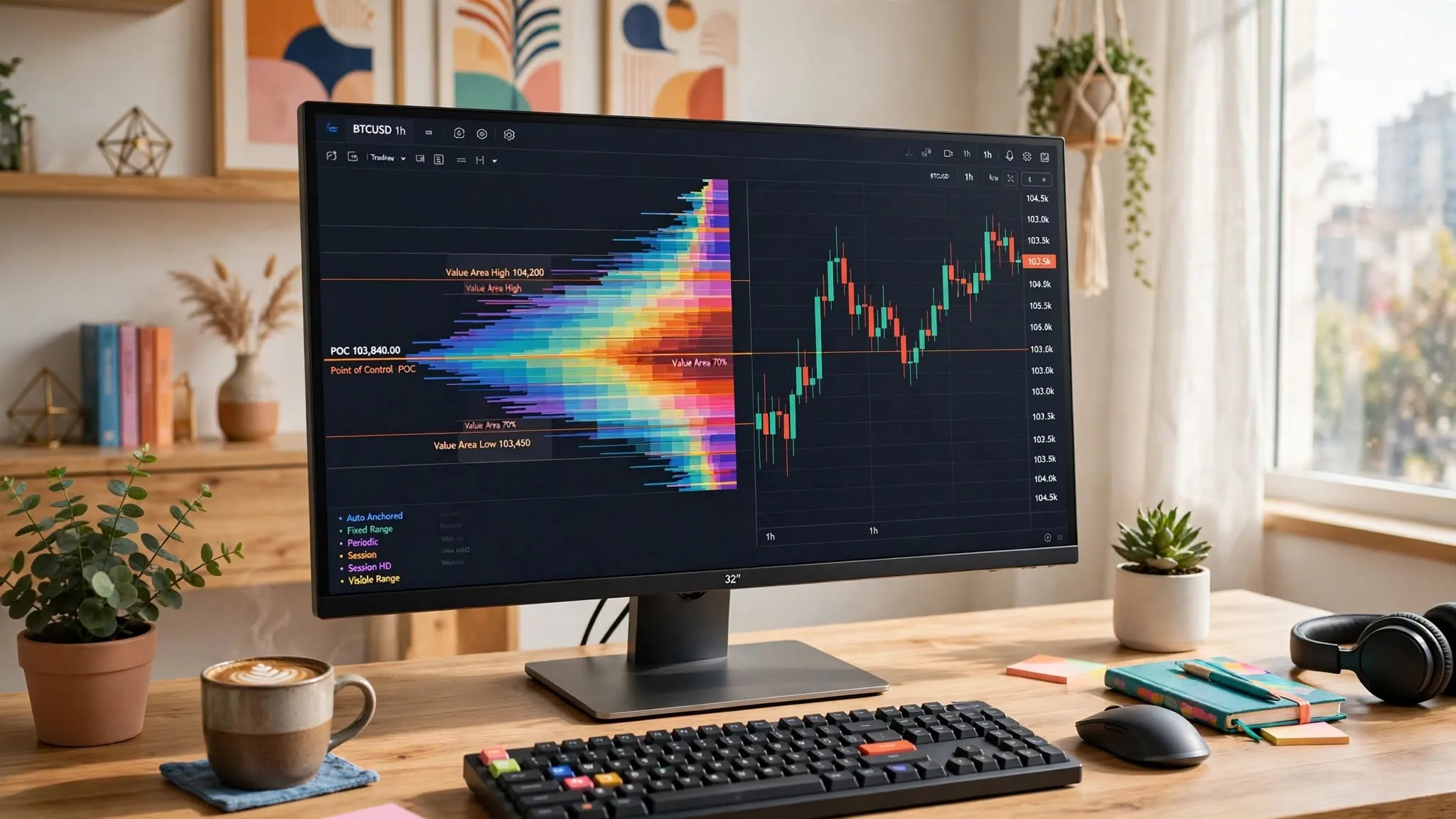
Three terms show up on every profile, whichever of the six you're looking at. The point of control (POC) is the single price row with the most traded volume — the fattest part of the histogram. The value area is the price range, roughly 70% of total volume by default, built outward from the POC. It marks where most of the business happened, not just the single busiest row. The profile extremes — sometimes called high-volume and low-volume nodes — flag prices that traded thinly. Price often moved through them quickly instead of consolidating there.
Which period you build these three off is a separate question from which tool to click. We've written the full case for that separately: see which profile period answers which question for the reasoning behind choosing a session, a range, or an anchored period for your specific read. This page stops at tool selection and plan availability. That one picks up from there.
Where a Volume Profile Breaks Down
A profile is only as trustworthy as the volume feed underneath it, and that feed isn't uniform across instruments. On a single, centralized futures exchange, the volume number is a real count of contracts that changed hands on that venue. The U.S. Commodity Futures Trading Commission publishes official volume and position data for regulated futures markets precisely because that centralized reporting is possible — one exchange, one tape, one number everyone can check.
Spot foreign exchange has no equivalent. It trades across a decentralized network of banks and liquidity providers, with no single exchange at all. What a charting platform shows as "volume" on an FX pair is typically tick volume — a count of price changes from one data provider — not a consolidated trade count. The Bank for International Settlements' own commentary on the 2022 Triennial Survey puts daily global FX turnover at roughly $7.5 trillion, split across inter-dealer trading and financial-institution flow spread over banks in dozens of jurisdictions. No single feed sees all of that. That structural fragmentation is the real reason a spot FX volume profile can look confident on your screen and still be measuring something other than what a futures trader expects "volume" to mean.
Equities sit between these two extremes. A listed stock trades across multiple exchanges and dark pools, so the volume reported by any single data feed is a subset of total market activity unless it's a true consolidated tape feed. Before trusting a profile's point of control on a fragmented instrument, check whether your data feed is single-venue or consolidated. The Quantzee research team treats this as a standing caveat on any volume-based read — profile or oscillator — on instruments that don't trade on one exchange.
Here's a simple test. Take a large-cap stock you watch. Add up every block you can see traded on your single feed's volume profile for the day. Then check the stock's official daily volume total from the exchange tape. Most of the time the two numbers won't match, because your feed only sees its own slice of the trading. A profile built on that slice can still be useful — the shape and the point of control often hold up even on a partial feed — but treat the exact bar heights as directional, not as a hard count. The gap matters most on thin days, and on stocks that trade heavily in dark pools, where a large share of volume never prints on the venue your feed covers at all.
What a Free Plan Actually Lets You Do
Per TradingView's own pricing page, the free Basic plan doesn't include any of the six built-in profile tools. The entire "Volume Profile" feature line starts at the first paid tier. That's a real limitation, not a formality. There is no built-in substitute on the free plan that profiles volume against price the way these six do.
The workaround most free-plan traders actually use is the community-script route. TradingView's public script library hosts third-party volume-profile scripts published by other users. Some free community scripts replicate a basic version of the fixed-range or session concept, though with less polish and no guarantee of continued maintenance. Search the library for "volume profile" and sort by popularity. Read the script's own description for the range logic it uses — community scripts vary in exactly the way the six built-ins don't, since anyone can publish one with their own assumptions baked in. If you depend on this feature regularly, budget for the Essential plan instead of building a workflow around a script someone else might stop maintaining next month.
Picking the Right Tool: A Short Decision Path
Work from what you trade and what you need, not from which tool's render looks most detailed. Most traders settle on two of the six as daily defaults and reach for the rest only when a specific situation calls for it — that's a normal, sensible setup, not a sign you're under-using the feature set.
- Need a live read of today's session as it builds? Use Session Volume Profile. Upgrade to the HD variant specifically on wide-range, high-volatility sessions where row resolution matters.
- Need to profile a specific event — an earnings gap, a news spike, a defined prior range? Use Fixed Range, anchored to the exact start and end you choose.
- Want the platform to find the significant range for you, with no manual anchoring? Use Auto Anchored. Sanity-check the auto-detected swing before trusting the result.
- Comparing how volume distribution shifted week over week or month over month? Use Periodic, set to the calendar period you're comparing.
- Just want a quick read of whatever's on screen right now, with no setup? Use Visible Range. Remember it changes every time you scroll or zoom.
- Trading a fragmented or decentralized instrument, spot FX especially? Read any of the six with real caution. Verify what your data feed's volume number actually measures before trusting the point of control.
None of the six is the wrong tool to use. The actual mistake — one the top-ranking pages for this exact keyword don't even address — is picking the tool with the most convincing render instead of the one whose range logic matches your question.
One habit worth building before you commit to any single tool: name your question in one sentence before you open the indicator list. "Where did volume pile up during yesterday's gap" points you straight at Fixed Range. "What's building right now, this session" points at Session or Session HD. "How does this week compare with last week" points at Periodic. The tool choice almost always falls out cleanly once the question is stated plainly, and the reverse order — opening a tool first and hoping it fits — is how most of the mismatched reads happen.